

How We Make Clickable Columns in Beaver Builder without Code
Beaver Builder, despite its great features, lacks a built-in functionality for making clickable columns. The typical solution to get around this is custom CSS and/or jQuery code snippets, which can be incredibly confusing to use if you are not familiar with code.
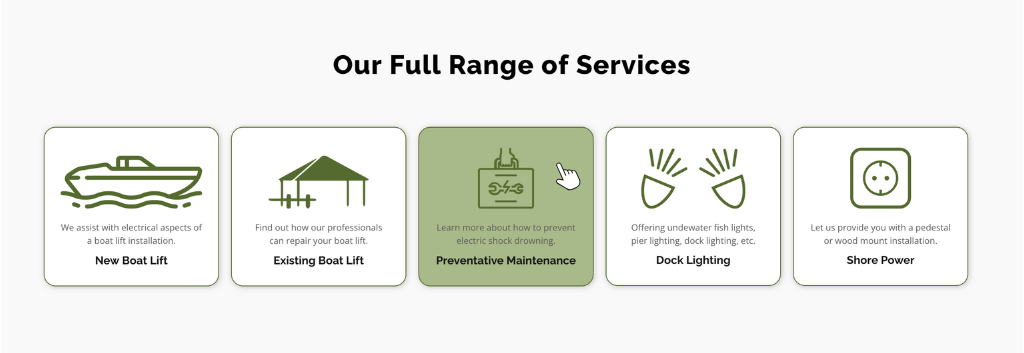
However, we found a hack to make “faux” clickable columns using the info box module from a free WordPress plugin called PowerPack Lite. This module occupies the entire column space, looks exactly like a normal column, and allows you to set hyperlinks for the entire module area. It also allows you to add multiple lines of text with in-line icons and photos (in case you want to upload custom icons), and offers drop shadows, borders, and hover colors to highlight its clickability. (Click here to learn more about PowerPack in the WordPress Plugins Index)
Here are two great examples of how we used it to make clickable columns on a recent site we finished for Elie Electric Services, featuring both vertically and horizontally arranged columns:

Note on the Limitations of This Method:
One drawback of these info-box modules is that when you add a hyperlink to the entire module, you can no longer add a separate button within the info box. There is an alternate option to add hyperlinks to both the header and a button, or you could also add a separate button below the module if you forgo box shadows or color fills. However, when your whole column is clickable, it is essentially one big button, so additional buttons are not really needed.
How to Make Clickable Columns Step-by-Step
1. Download PowerPack Lite
Go to your plugins page and click “add new plugin.” Then search for “PowerPack Lite,” and click “Install Now.”
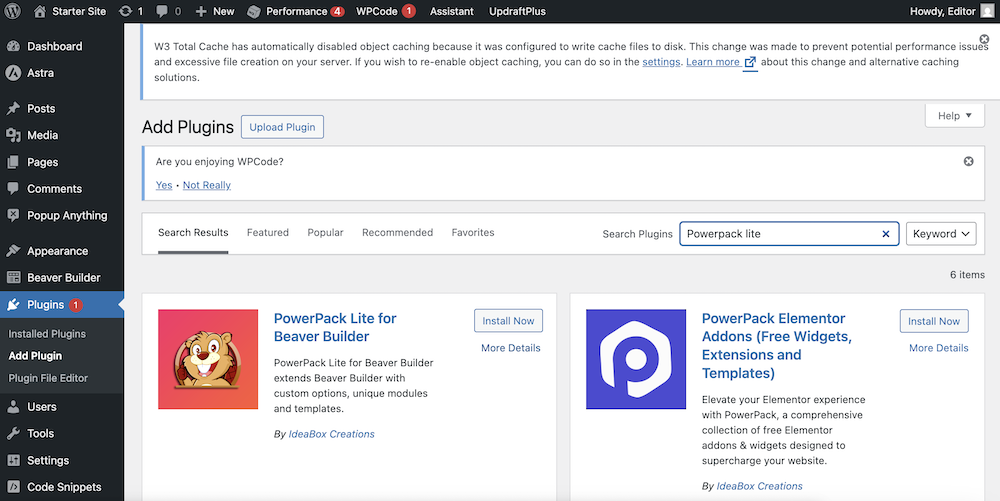
Once installed, on that same page or from within your installed plugins list, click the “Activate” button.
2. Add Your Desired Columns
Once the plugin is activated, open Beaver Builder and add a new row and your desired number of columns.
3. Add a New Info Box Module
Open the modules tab and click on the Group: Standard Modules dropdown.
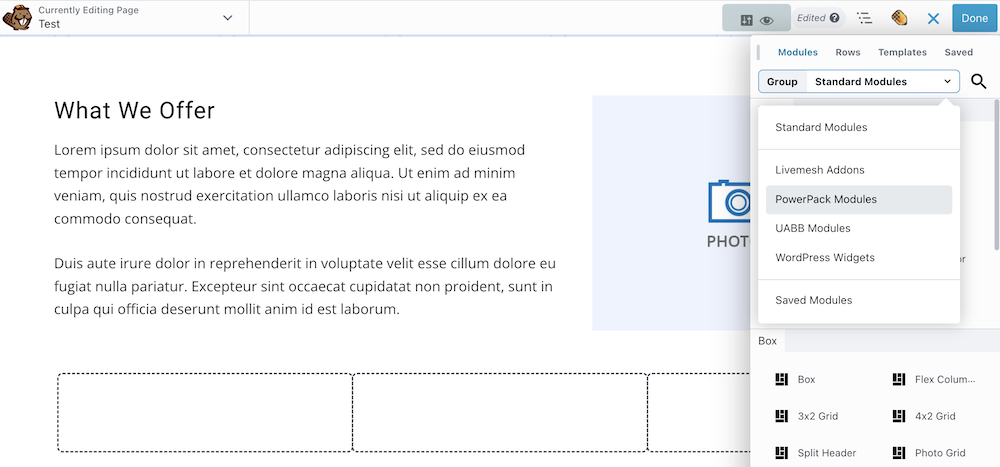
From here, select PowerPack Modules. When that loads, the info box module should be the third down on the left side. Then click and drag a new info box module into one of your columns:
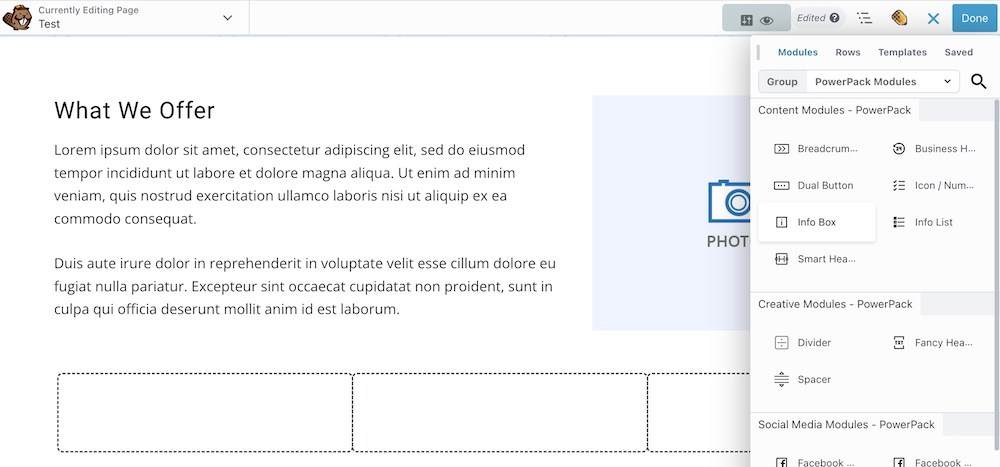
4. Add Your Written Content
We like to start with written content first, so you can see how everything else will lay out as you go. Enter your title and the supporting information. (The Title Prefix is optional smaller text that lies right above your title).
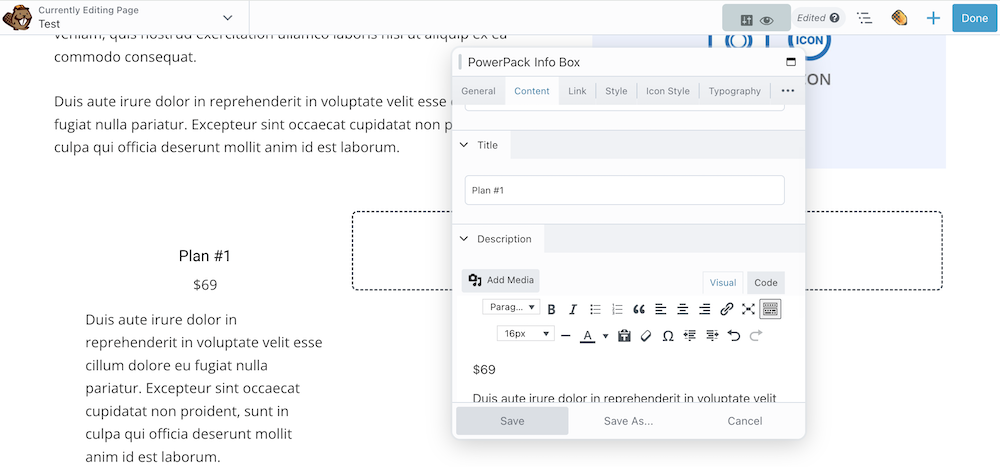
Once you have the content in, press save. (It’s a good habit to press save after every few changes so you don’t lose all of the changes you made if you hit cancel or only want to undo the last change you made.)
You can then go to the Typography tab and change the fonts, sizes, colors or other options for your text.
5. Add Icons/photos
Go to the General tab to add an icon or a photo and choose where you want it to be in comparison to the text:
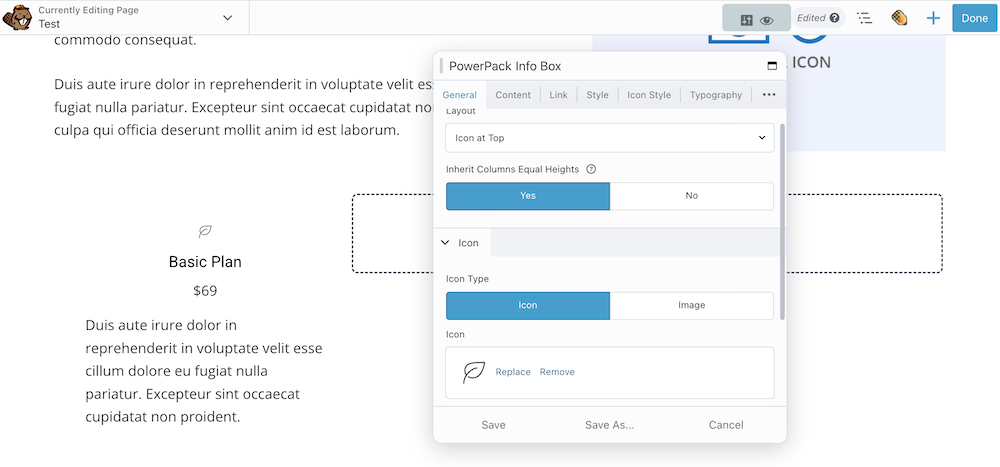
Once you’ve selected one, navigate to the Icon Style tab to change the size, color, background color, border, and other settings.
If you want your icon/photo to be at the left or right of your title, you may notice that the icon doesn’t perfectly fit in-line with the title:
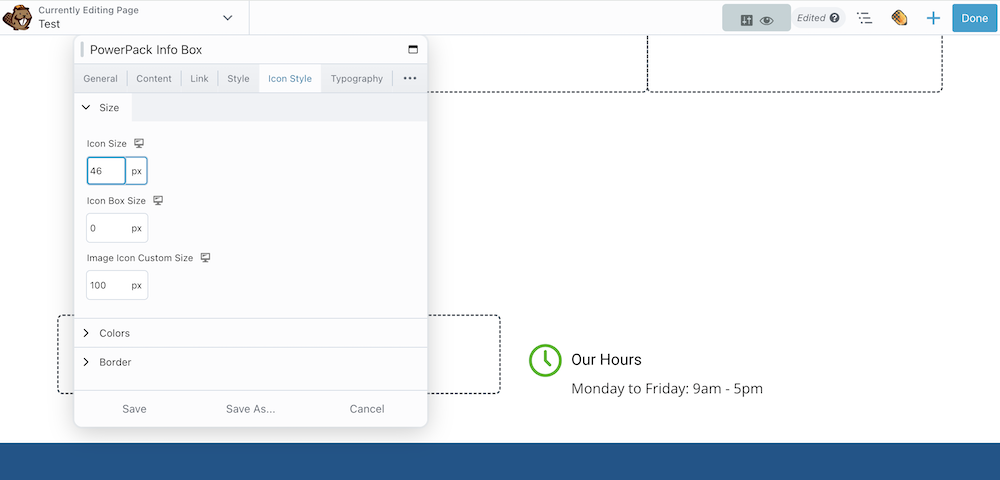
To fix this, go to the style tab and scroll down to Title, and change the top margin until the title is in-line with the icon. You can add a negative number if you need as well, like I did here:
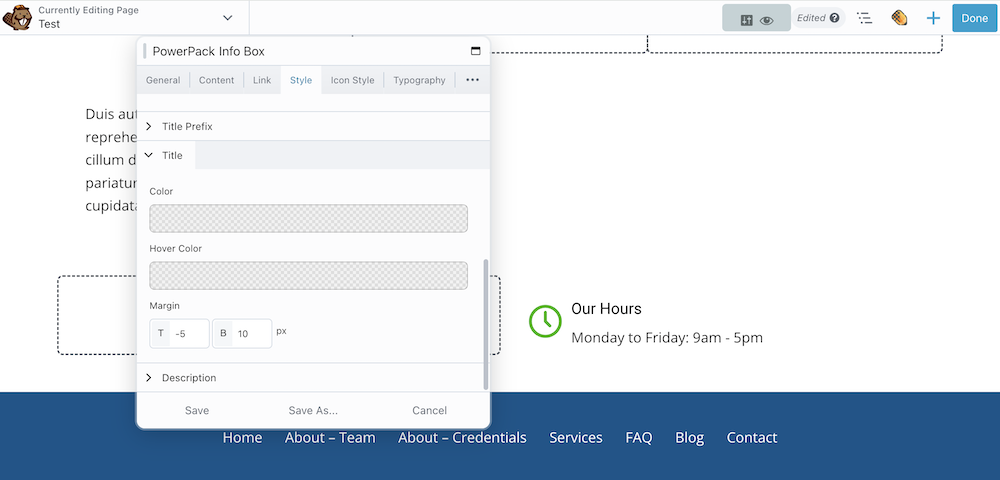
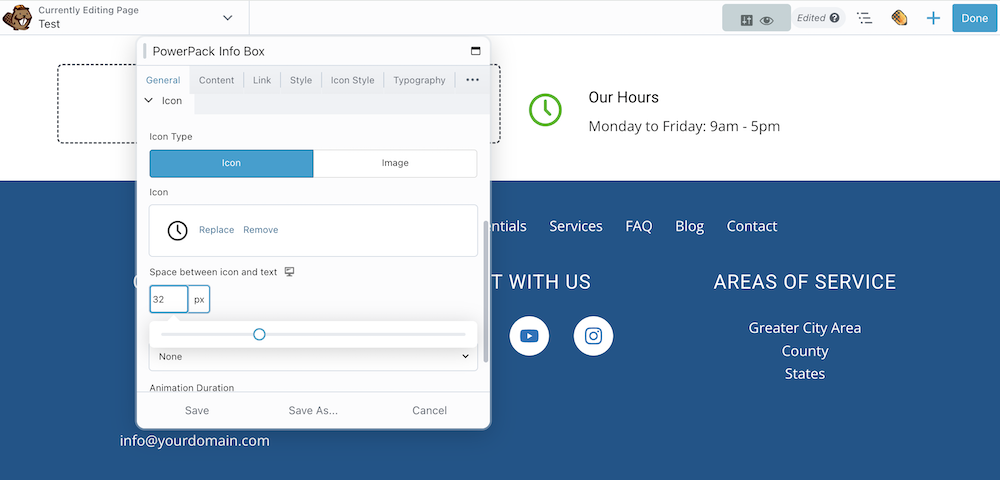
If you’d like more space between the icon and the title, you can find the spacing setting in the General tab under the Icon
6. Styling Your Clickable Column
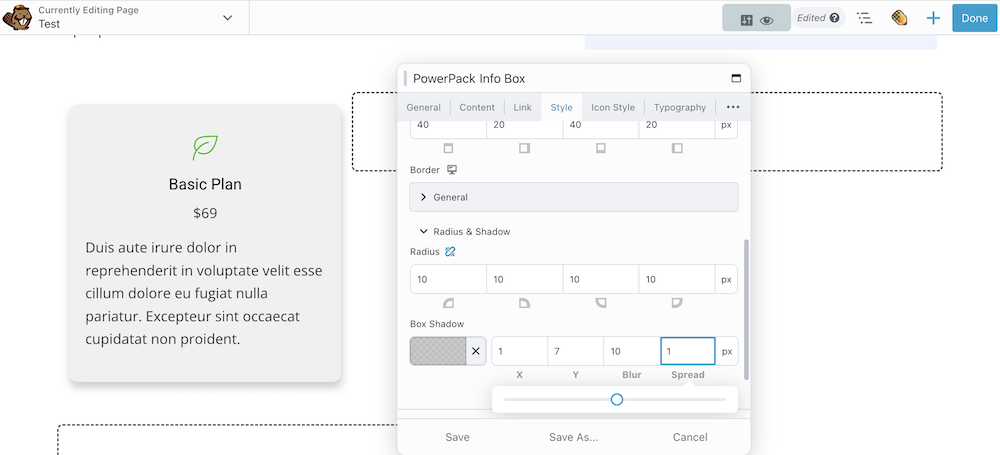
For other styling options, like colors, borders and drop shadows, you can find these in the Style tab. Here you can also add more padding to the box and make the corners rounded.
7. Making the Column Clickable
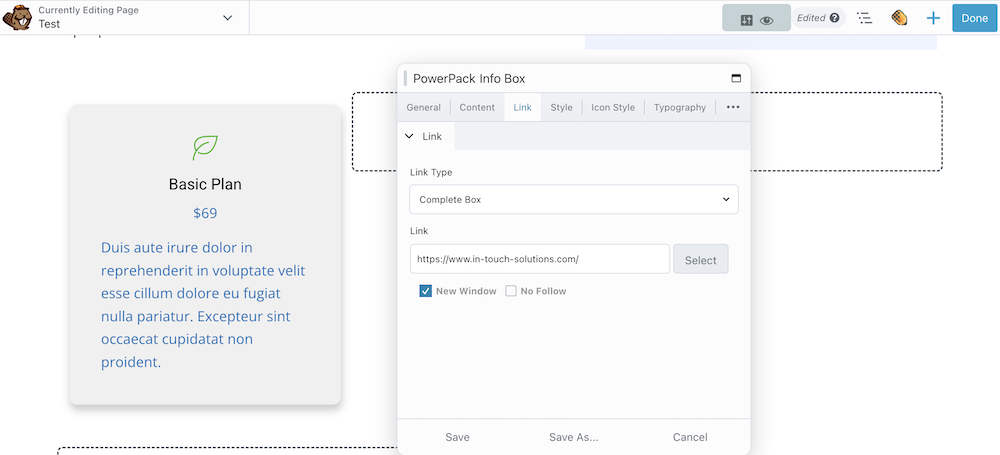
Last but not least, we add our hyperlink. Go to the Link tab and select Complete Box from the dropdown, then add your link. This may change all of your text to your site’s link color, but you can override this by going back to the Style tab and changing the color under the Title and Description dropdowns.
8. Duplicate or Save Your Clickable Column Module
You can then duplicate your module to customize other clickable columns for your page.
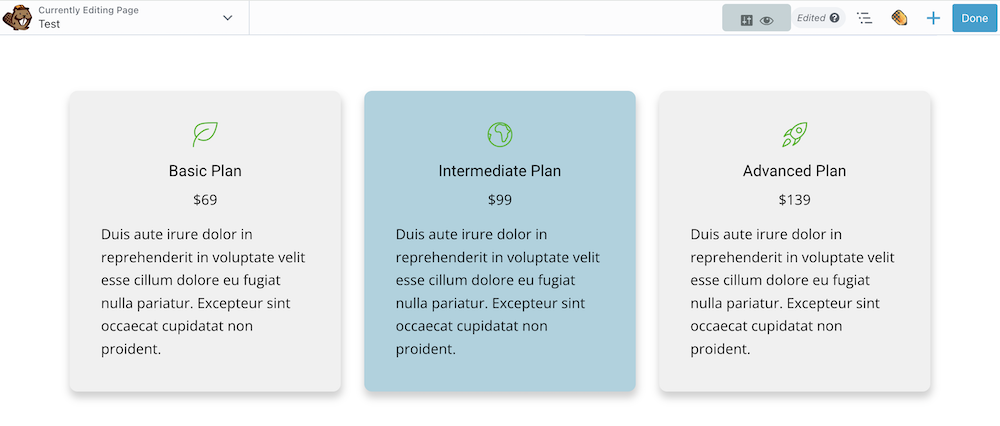
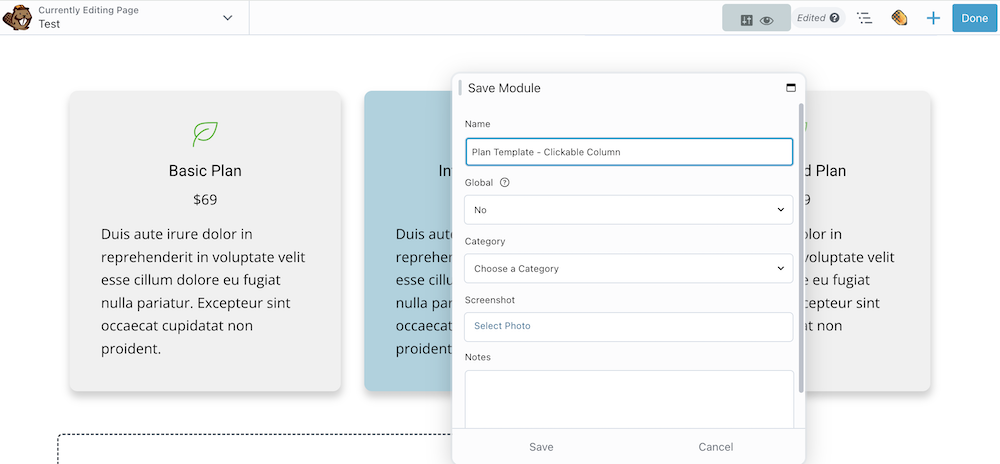
Or even click Save As at the bottom of the module to save it as a template to use and customize for other pages on your website.
If you find that your boxes look longer or shorter than each other due to a different amount of text in each one, you can easily remedy this by going to the Style tab and selecting yes in the Equalize Heights dropdown (doing this affects all of your columns at the same time, so you only need to do this once).
9. Optimizing for Different Device Sizes
When editing your webpages for different device sizes, especially for tablet size, your columns may not wrap as well as you would like them to.
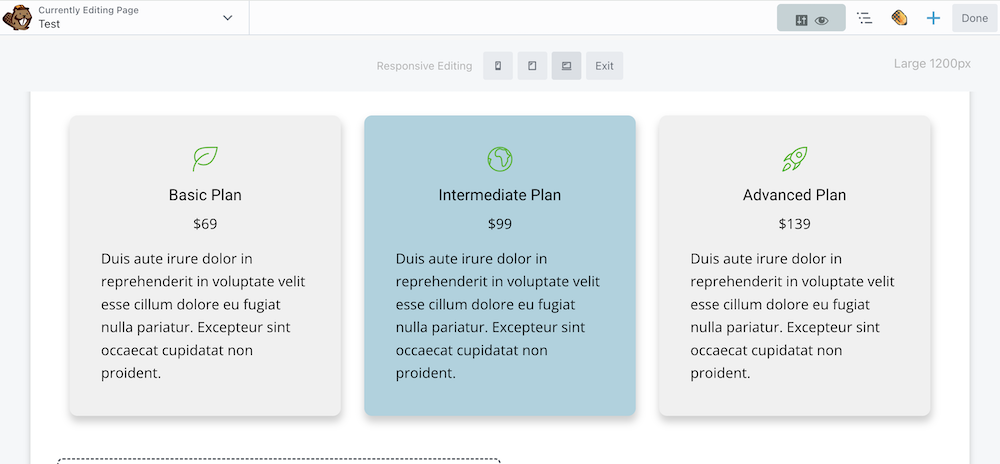
To test this, we use Beaver Builder’s built-in responsive editing mode, which you can open by pressing the R key on your keyboard. There are four device sizes, Largest (which is the default view, for larger computers), large (smaller laptops), medium (tablets), and small (mobile phones).
Pressing R will continuously cycle you through these sizes, and pressing shift + R will cycle you back the opposite direction. You can also use the buttons that appear at the top of the page to directly select the size you want:
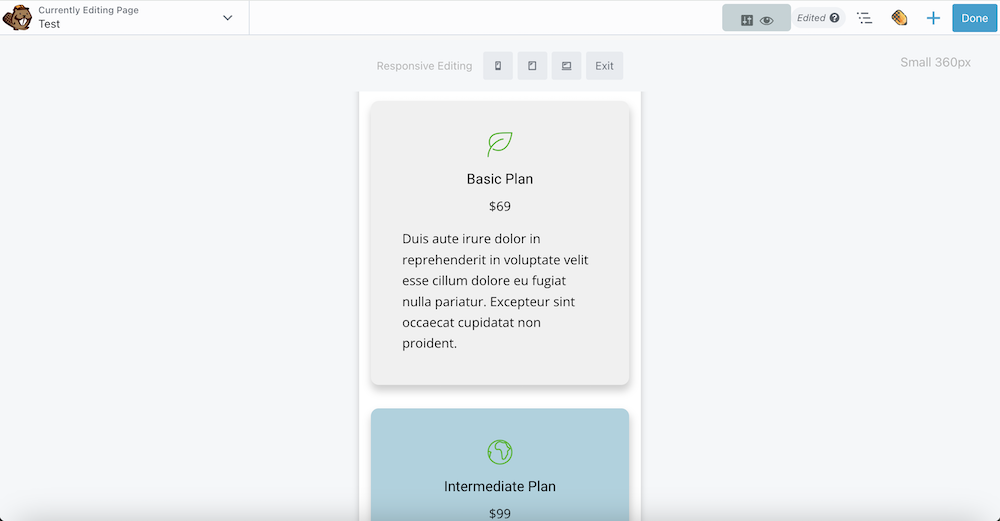
When I check my vertical columns in mobile size, they stack nicely in a single column:
However when in tablet size, they get rather squished:
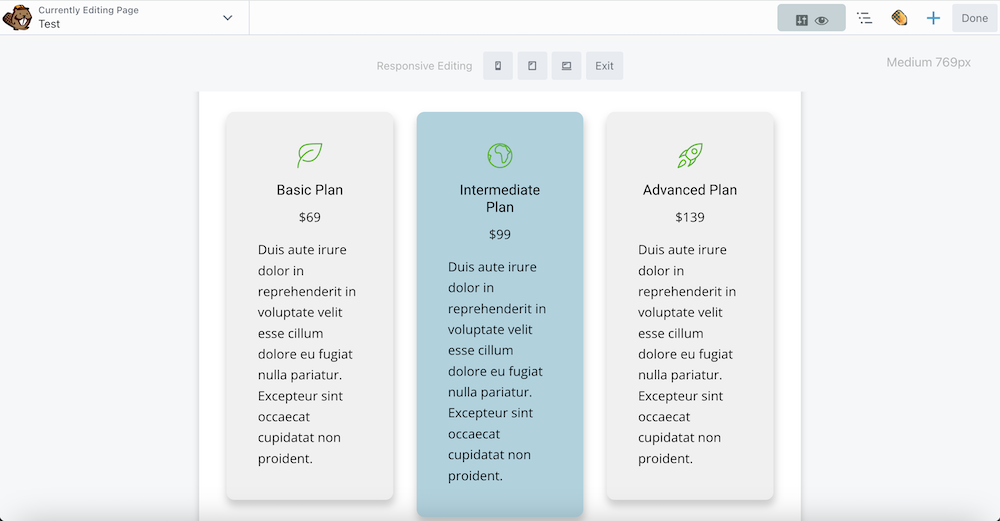
You could improve this by changing the font size and margins. But if you like the size, the best fix would to be make another more optimized row that will only be visible in the tablet size.
To do this, duplicate the row, open the Advanced Settings tab for that row, and make sure only the tablet icon is selected in the Visibility/Breakpoint section. (Don’t forget to also go back to the original row and unselect the tablet icon so it won’t appear twice).
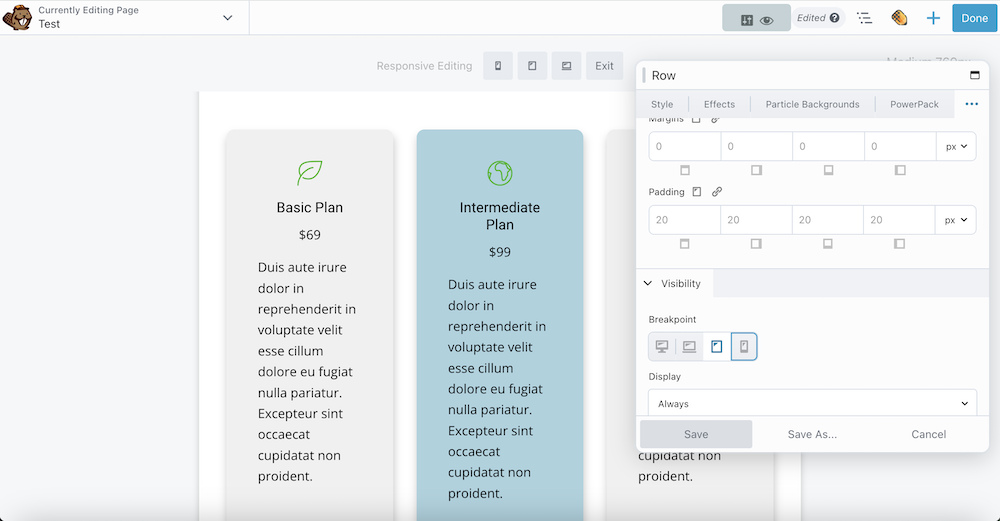
From here you can create a second sub-row within your main row and drag one of the columns down below. If you start with columns, we recommend using the Left and Right Sidebar row and dragging the 3rd column into the big middle column.
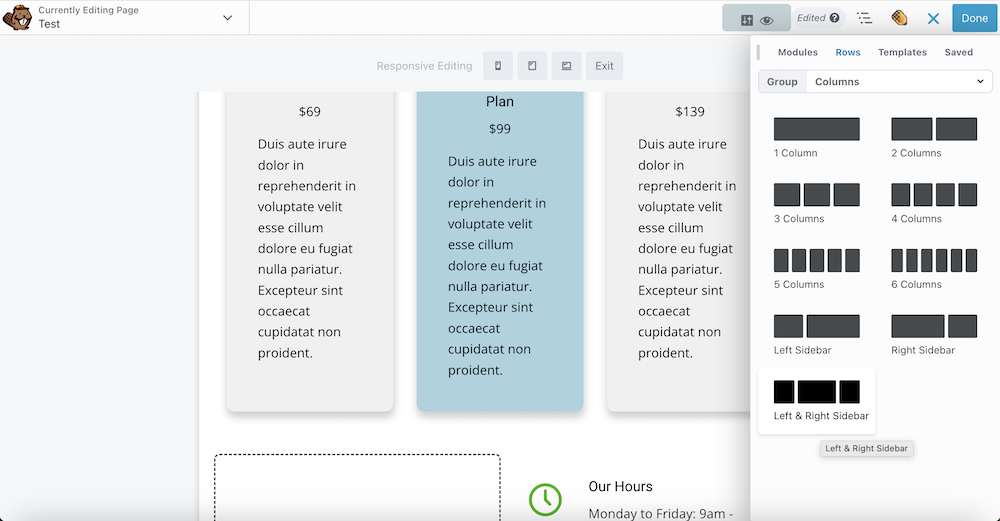
You can then delete the empty column it leaves behind and all three columns should be the same size:
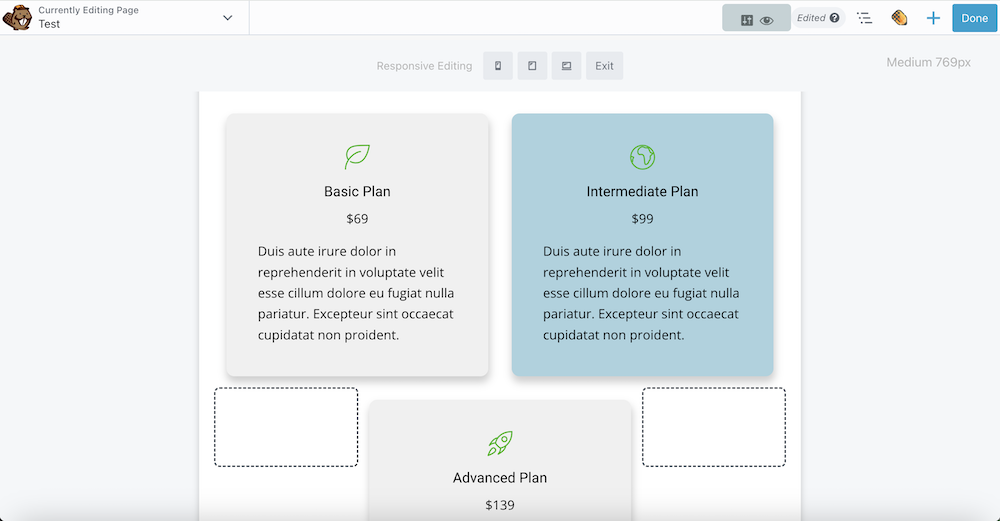
If you start with 4 columns, we recommend using a 2 Columns row so you end up with 2 rows of 2 columns. If you start with 5 columns, you can do 2 rows of 2 columns, then add a Left and Right Sidebar row at the end like in the 3-column option above.
To better preview how this looks, you can press the P key on your keyboard to open up Preview Mode and select the icon for your desired device size in the top lefthand corner:
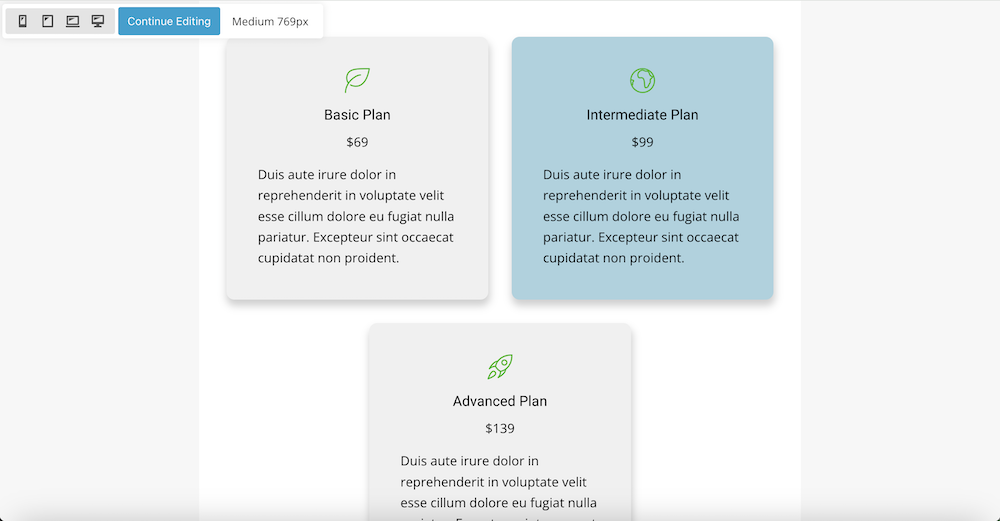
You can then press P again or click Continue Editing to get out of preview mode, and keep editing until your columns are to your liking.
Conclusion
While creating real clickable columns in Beaver Builder does require using tricky CSS code, we are happy we could share this easy (and free!) workaround with you so you can build clickable columns without any of the stress.
Happy web building!
Tired of struggling with Beaver Builder and want someone to build a new site for you? We can help with that. Give us a call today!
Looking for more website tips? Read more articles in our Website Tips Series below: